As the host of many Zoom meetings, I rely on AI Summary to capture key points and discussions. The summaries arrive in my inbox as emails, which is great—but I wanted a way to store them neatly, in PDF format, directly in Google Drive, so I could later feed them into NotebookLM as a knowledge source.
Doing this manually after every meeting was repetitive and time-consuming. That’s where Microsoft Power Automate came to the rescue.
The Goal
- Retrieve the body of Zoom AI Summary emails.
- Convert the email content into a PDF file.
- Upload the PDF automatically into a specific Google Drive folder.
- Keep everything clean by deleting temporary files along the way.
Building the Flow
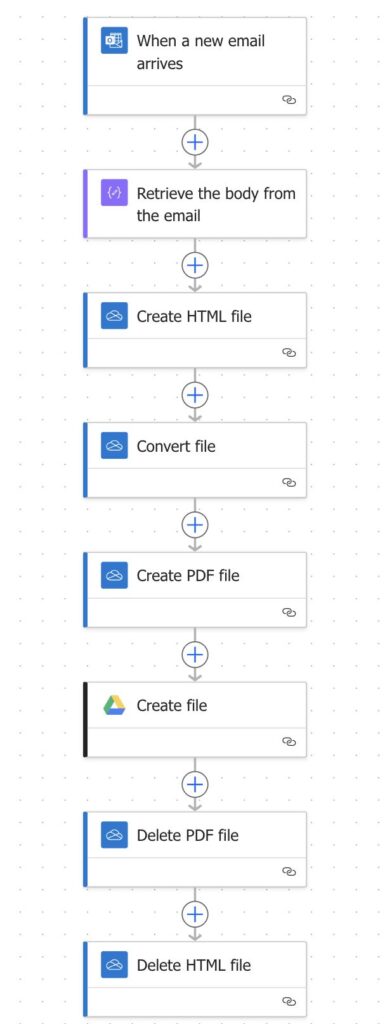
Here’s the step-by-step automation I set up in Power Automate (see the workflow diagram above):
- Trigger – When a new email arrives
The flow starts whenever I receive a new email in my inbox. I filtered it to catch only Zoom meeting summaries. - Extract the body
I used a simple action to retrieve the email body (the AI Summary text). - Create an HTML file
Power Automate doesn’t let you directly convert raw text to PDF, so the trick was to wrap the email body in an HTML file first. - Convert HTML to PDF
With the HTML file created, I used the built-in conversion action to generate a PDF version. - Save to Google Drive
The PDF is then automatically uploaded to my Google Drive in the folder I set aside for summaries. - Cleanup
To keep things tidy, I added steps to delete the temporary HTML and PDF files created along the way.
Why This Matters
This flow completely removed the manual steps I used to take: copy-pasting, formatting, exporting to PDF, and uploading. Now, within seconds of a Zoom meeting ending, I have a neatly stored PDF in Google Drive, ready to be used as input for NotebookLM.
The whole process runs in the background, which means I can focus on preparing for my next meeting or reviewing the insights, instead of dealing with file conversions.
Key Takeaways
- Power Automate is surprisingly flexible for cross-platform tasks (in my case, bridging Outlook, OneDrive, and Google Drive).
- Converting email content into structured files (like PDFs) makes it much easier to feed into tools like NotebookLM.
- Don’t forget cleanup steps—automations can quickly create clutter if you leave behind temp files.
Final Thoughts
What I love most about this setup is that it feels like having a personal assistant who organizes all my Zoom summaries without me lifting a finger. For anyone working with AI-generated notes, transcripts, or summaries, automating the pipeline into your preferred knowledge base is a huge time saver.
Be First to Comment